Table of Contents
Overview
NetScaler Console’s (NSC) / Console Service Zero Touch Certificate Management now exists a while, but after talking to several customers, I think there are some misunderstandings what’s behind the Feature ZTCM and Manual / Auto renewals and how these two features play together.
The following article will give you some insights on how to configure ZTCM and which Part will add the real “Zero Touch” feeling to the Party – the Auto Renewal. Also, we will cover some limitations and missing features.
Understanding the Methods
Before we start, we have to difference between the “Zero Touch” Features and settings and what that exactly means for your Backend and NetScaler Infrastructure.
We will explain the differences in the menu points of NetScaler Console / Console Service.
Zero-Touch Certificate Management
This is where you can start with. Upload an existing Certificate to NSC / NSC-Service, select the Sync-Type CUSTOM or GLOBAL (depending on how many Instances you are supporting with NSC / NSC-Service, you can select different Instances, makes sense for Service Providers) and an existing Certificate is pushed to the Remote-Store of your NetScaler.
Remote-Store? Yes, you can see the SSL-Certificate on your NetScaler Instance, but you’re never able to bind it from there to a vServer, because technically it’s not stored on the NetScaler / ns.conf itself – it’s just living in the RAM, connected to the Cert-Store of NetScaler Console (called Zero Touch Certificate Store).
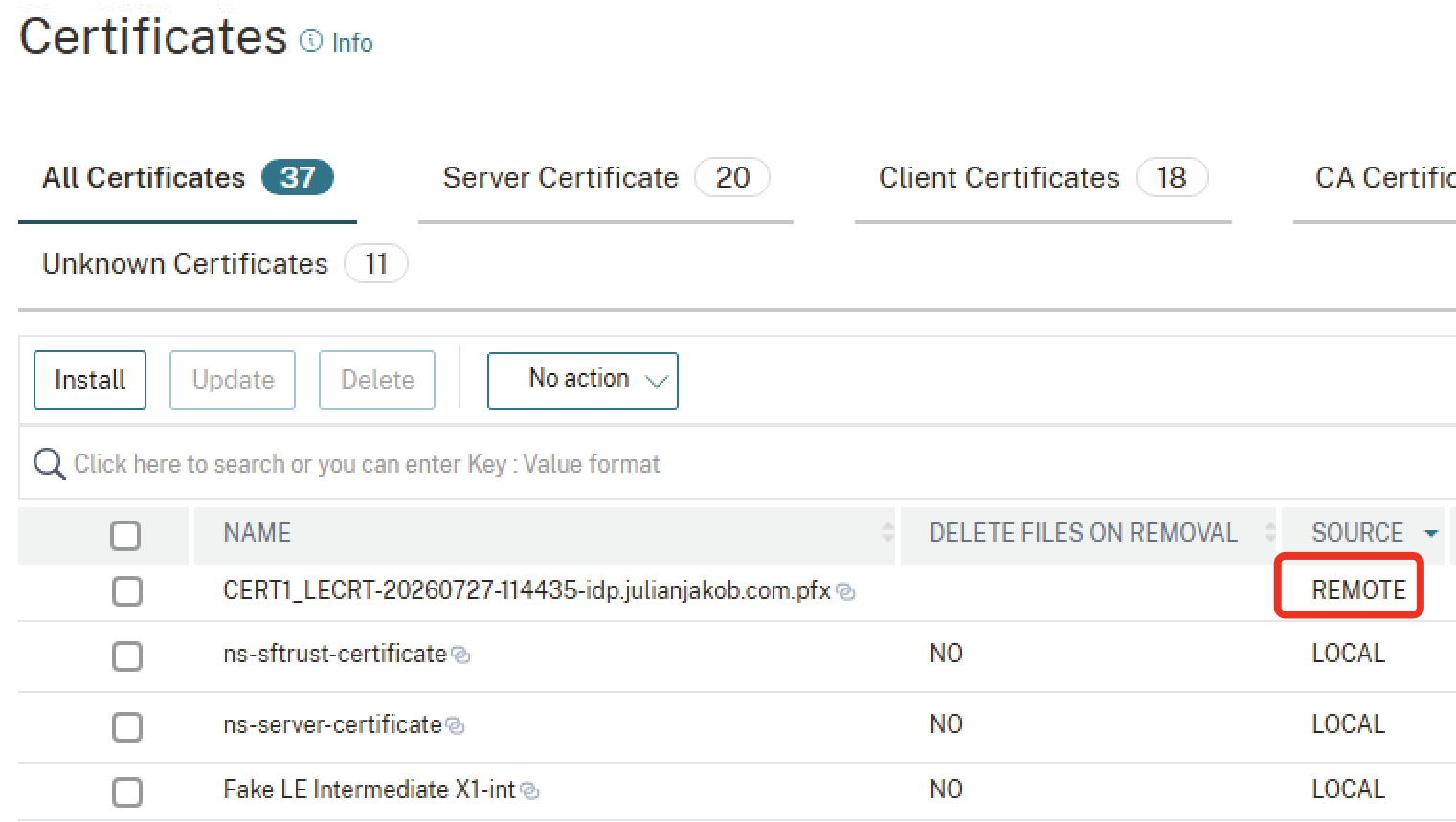
As soon as you upload a Certificate to the ZTC Store and select a Sync-Type, the following happens in the background automatically:
- A remote command is sent to the NetScaler Instances, enabling SSL zero-touch. You can check the status on NetScaler CLI via show ssl zerotouchparam
- As of now, you can unbind any SSL certificate from your SSL vServer and the Status will remain UP (before that, the forever default behavior was any SSL vServer goes DOWN as soon as there is no cert bound to it)
NetScaler now selects the appropriate certificate from the Remote-Store based on the SNI (Server Name Indication) provided in the client’s SSL Client Hello packet. You don’t have to enable SNI in your SSL-Profile! For legacy-clients that do not send SNI, there are two supported fallback options:
- Manual Cert-Binding -> Manually binding a certificate from the local NetScaler Cert-Store to a SSL vServer bypasses ZTCM for only that vServer. The remaining SSL vServer on the same Instance can coexist with ZTCM.
- Configure a default SNI per SSL vServer, so the Zero-Touch mechanism automatically knows which Cert to present, without the need of a Client sending a SNI Hello packet. Use set ssl vserver -defaultSNI service.customer.com
ZTCM has also some technical limitations which you should check before implementing it globally:
- Authentication vServers (AAA) are not supported. If your AAA isn’t exposed public, use an internal cert-binding, so it’s exlcuded from ZTCM. Otherwise, use the Third-party Integration of NSC / NSC-Service to grab the cert automatically and push it to the local Store of NetScaler for your bindings.
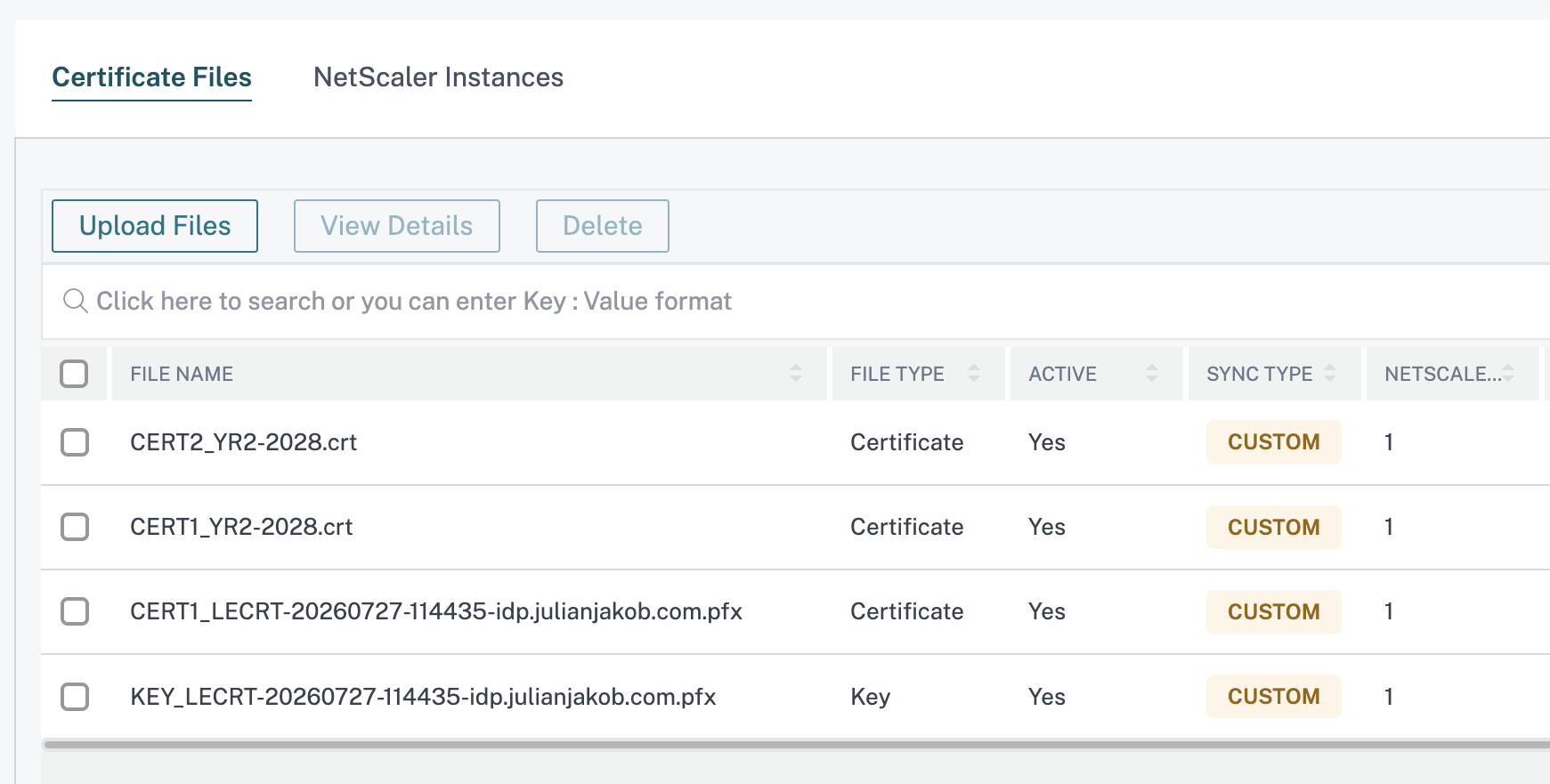
- When uploading a cert manually to use for, make sure you upload the complete chain (Intermediate and Root) – so the chain will be linked automatically – when using Auto-Renew, the chain of your configured public CA is grabbed and linked, by default. So for Let’s Encrypt, it should look like this:
- VPN vServers are only supported when using the typical HDX / ICA Proxy scenario. Full SSLVPN or clientless VPN use cases are currently not supported. The above mentioned Default-SNI command is also mandatory in environments, where the a NetScaler uses a VPN vServer for the frontend (client connects to) and a LB vServer (Eg StoreFront) on the backend.
- IPv6 configured NetScaler Consoles are not supported for ZTCM.
- SAML signing and OCSP responders aren’t supported.
Configuration
Now, let’s start setup the ZTCM process.
Zero-Touch Certificate Management
Upload an existing Certificate from your preferred CA and select GLOBAL or CUSTOM Sync.
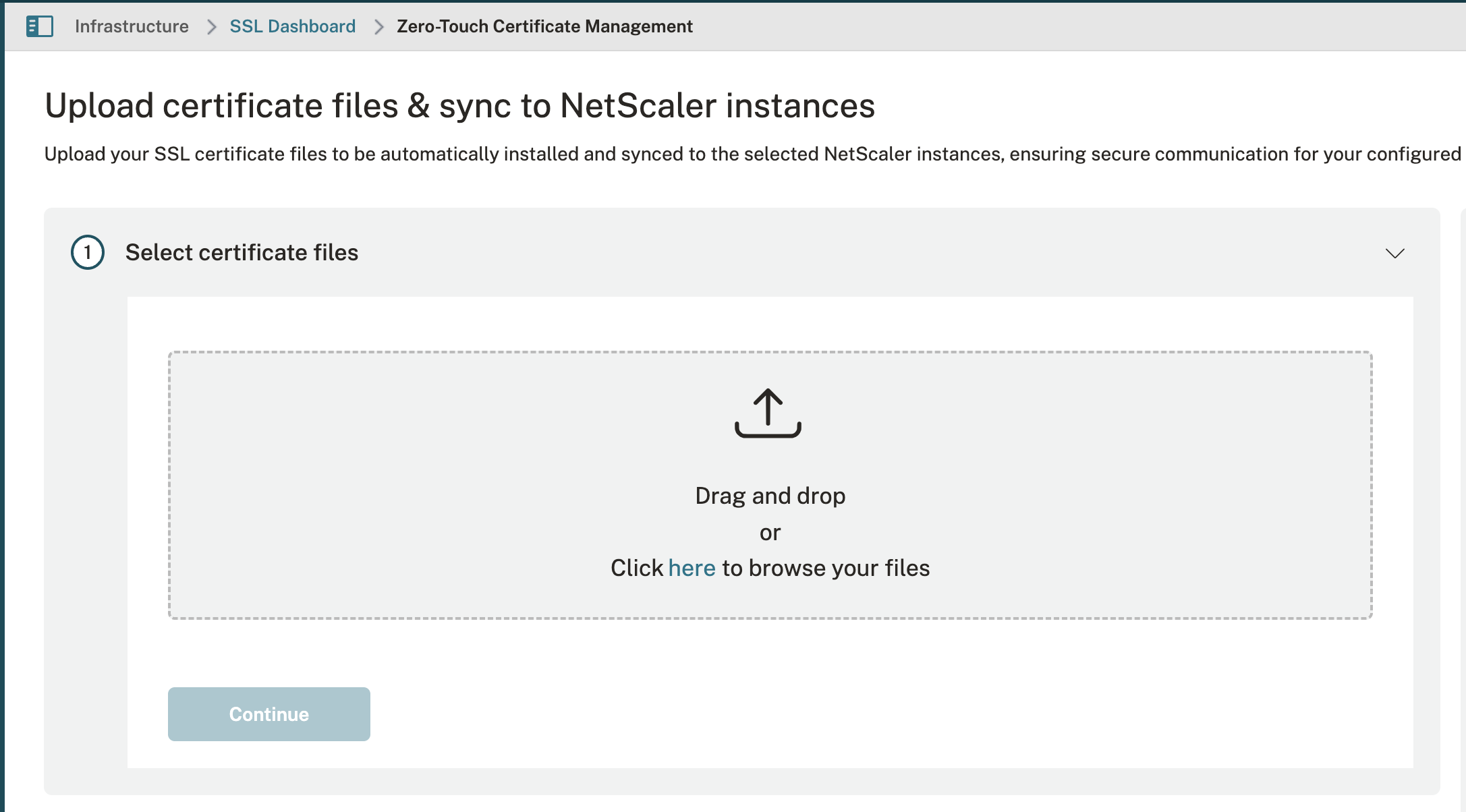
In my case I want to separate ZTC-Stores to different NetScaler-Instances, so I choose CUSTOM and use only selected Instances:
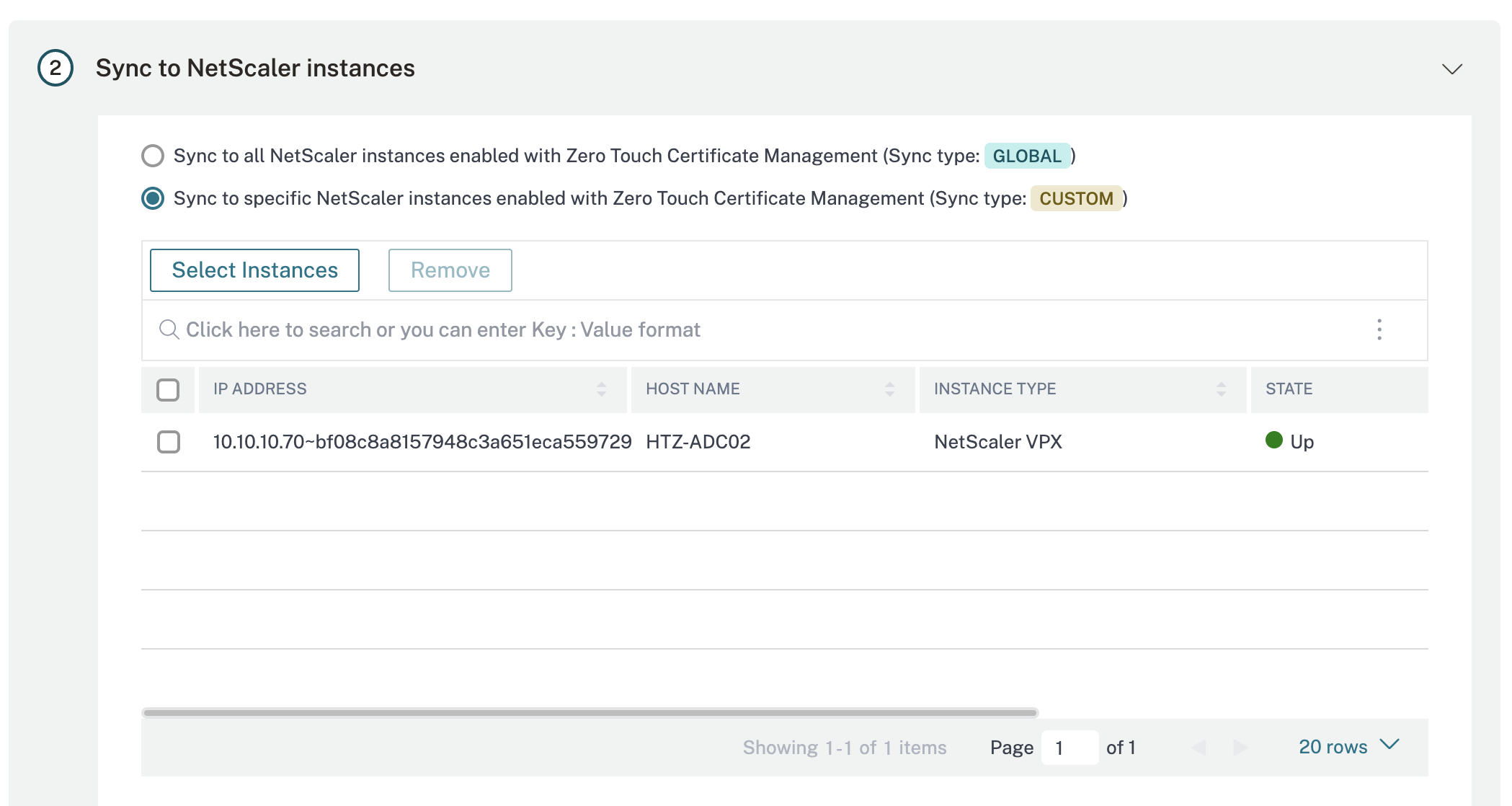
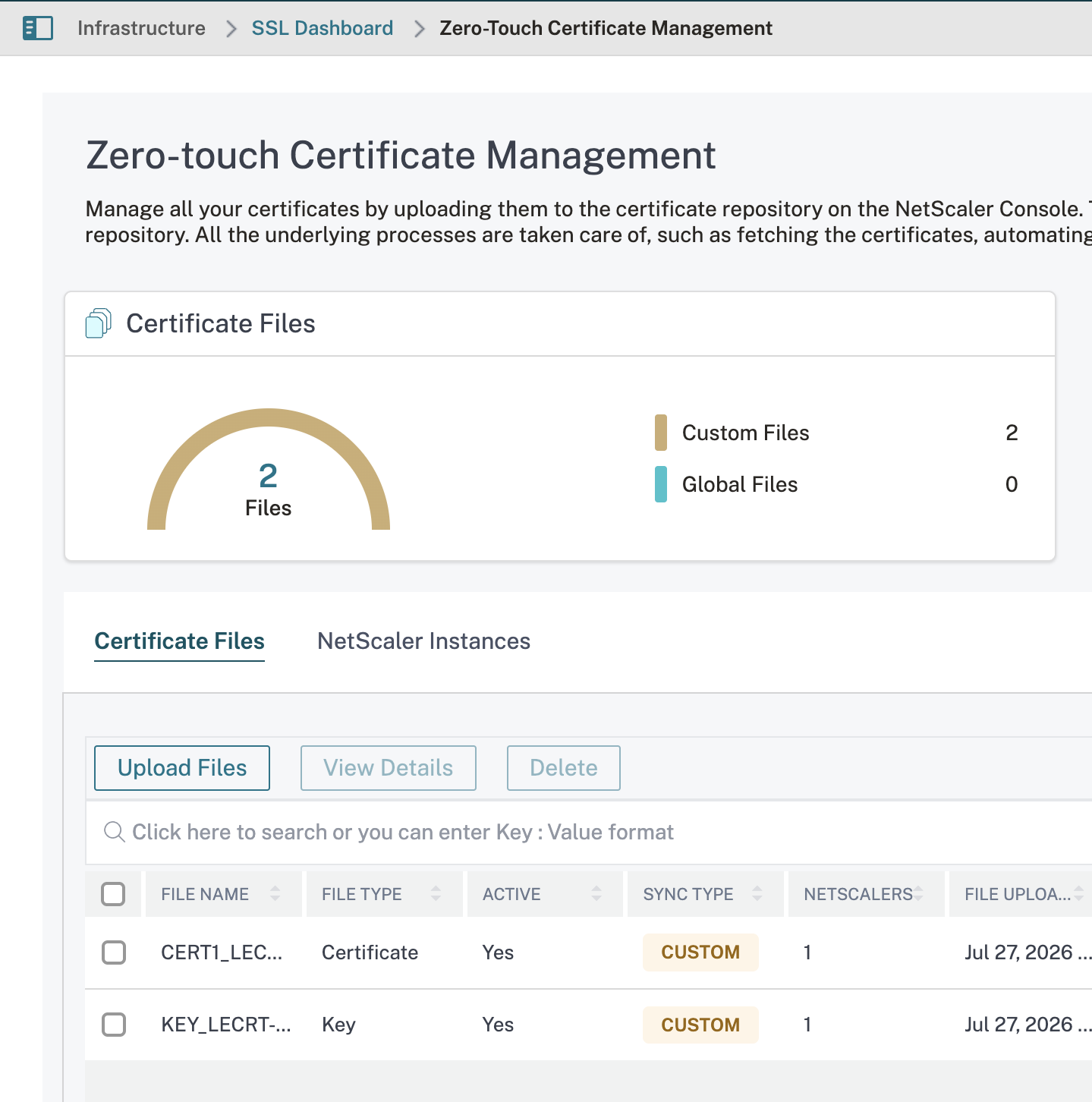
After configuring Zero-Touch Certificate Management, we can now go on to configure automatic renewal for the previously uploaded certificate (which was a Let’s Encrypt).
Third-party Integration
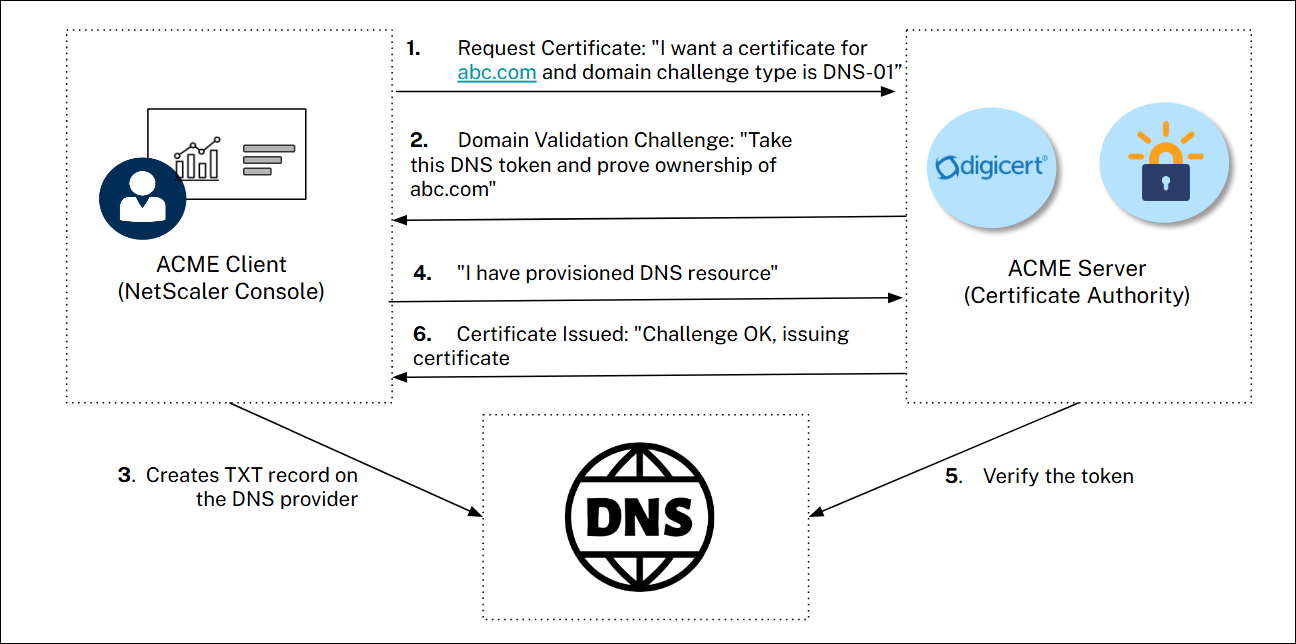
Before switching from manual to automatic renewals, we have to configure a supported Third-party Integration CA via ACME or Venafi:
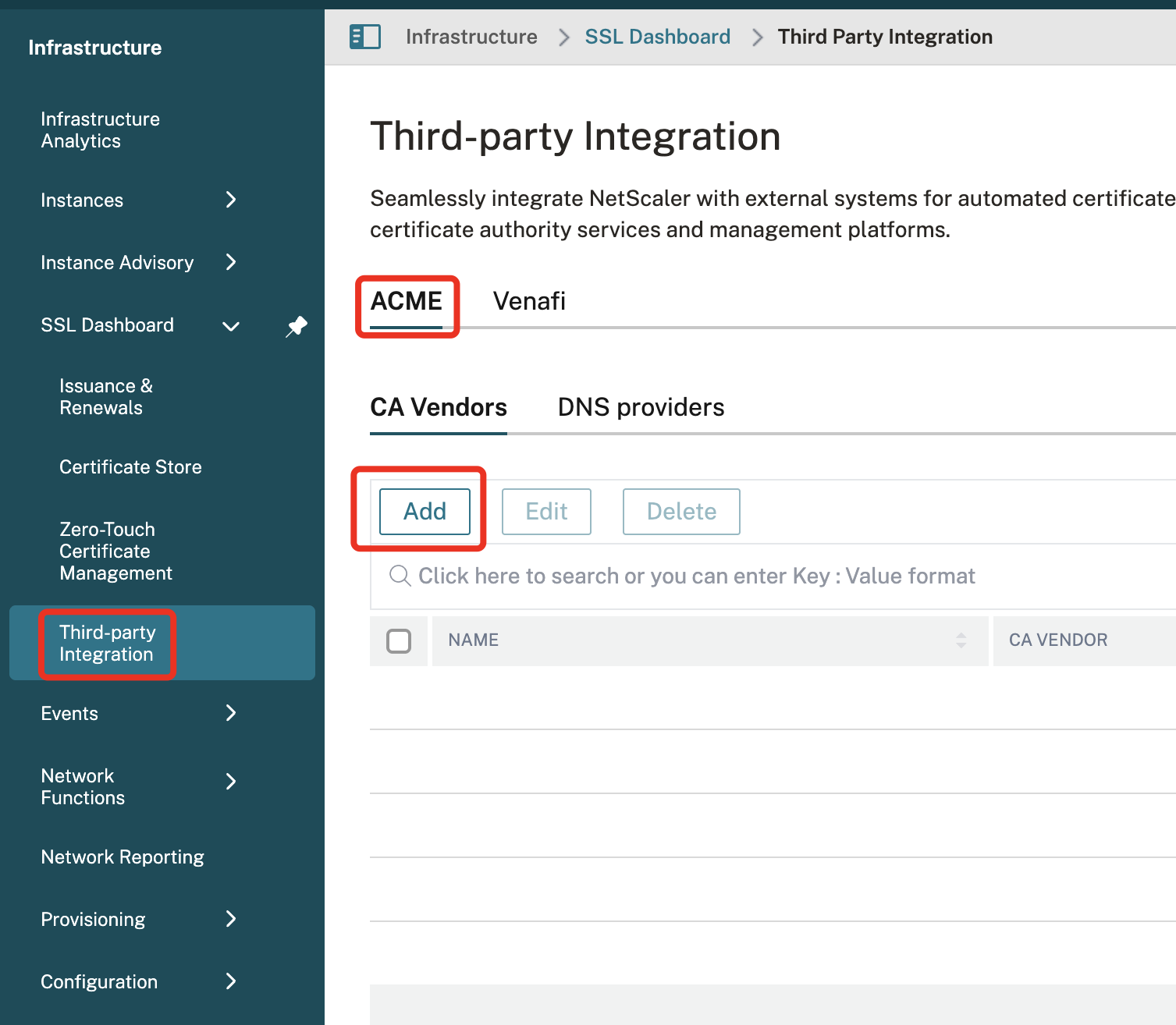
In this example, we are using Let’s Encrypt, which is automatically configured because of the uploaded Cert, which is from Let’s Encrypt, too:
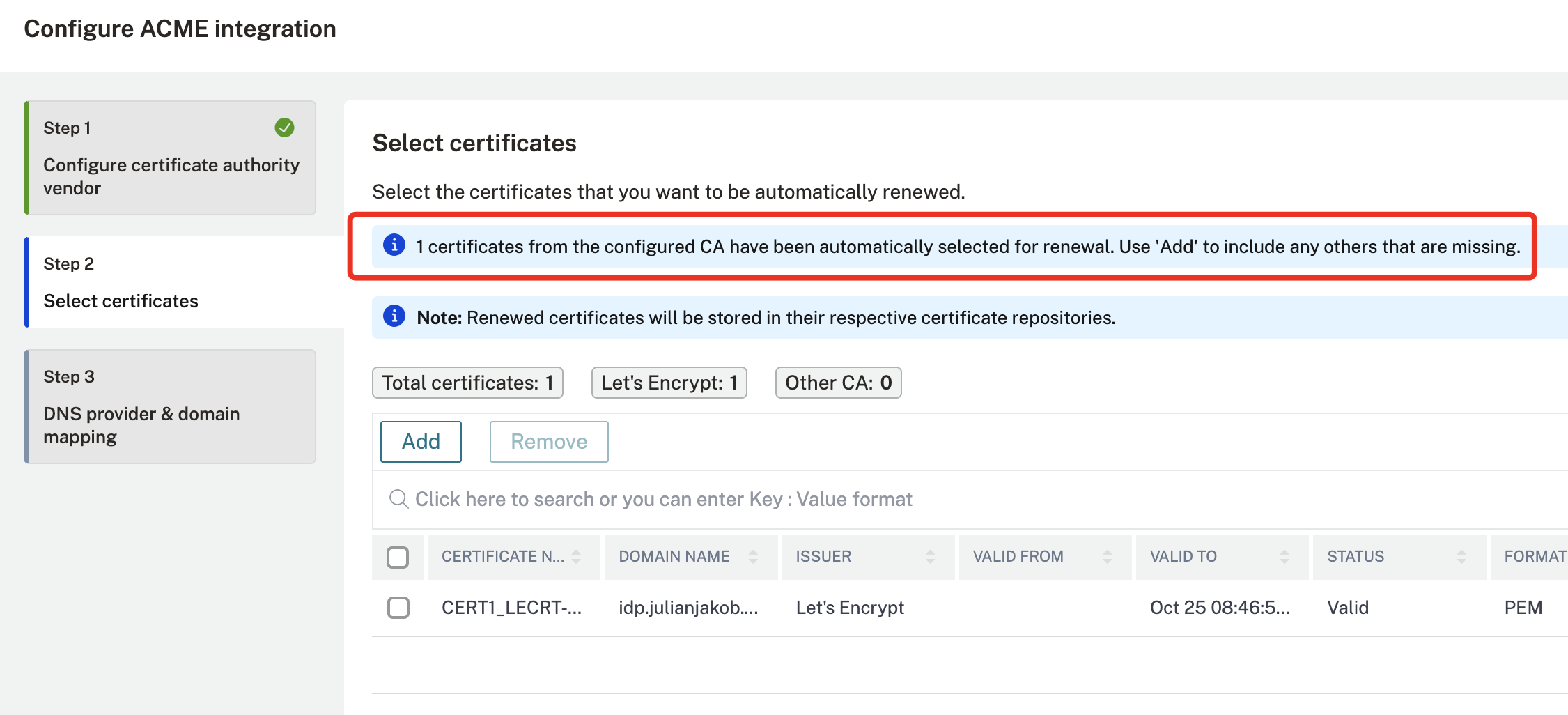
Next is the DNS provider and Domain mapping. My Lab runs on Azure DNS, so go to Azure and create an App Registration with a Client Secret, you will need it later to connect NSC to your Azure Domain.
Go to your Azure DNS Zone, IAM and add a Role Assignment, add your previously created App Registration as a DNS Zone Contributor:

Back on NSC, select Azure DNS and enter your App Registration / Azure DNS Subscription ID and the created Client-Secret:
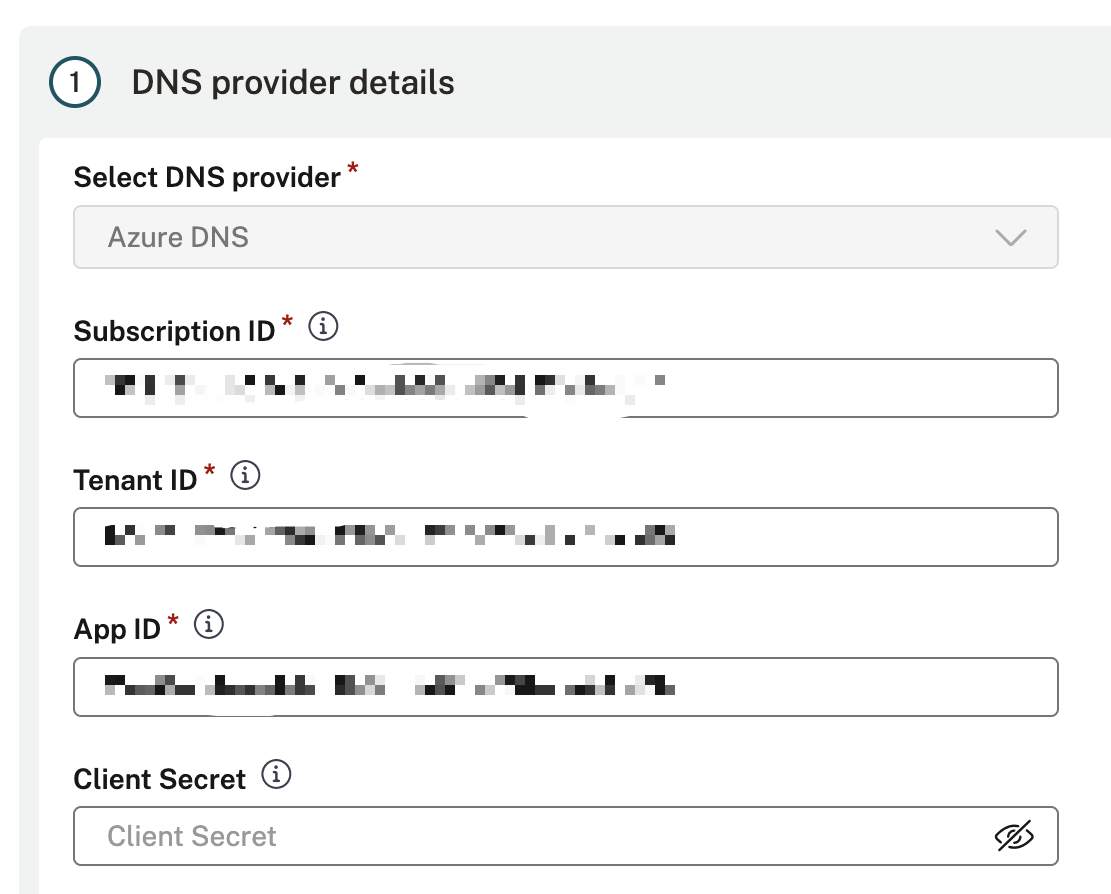
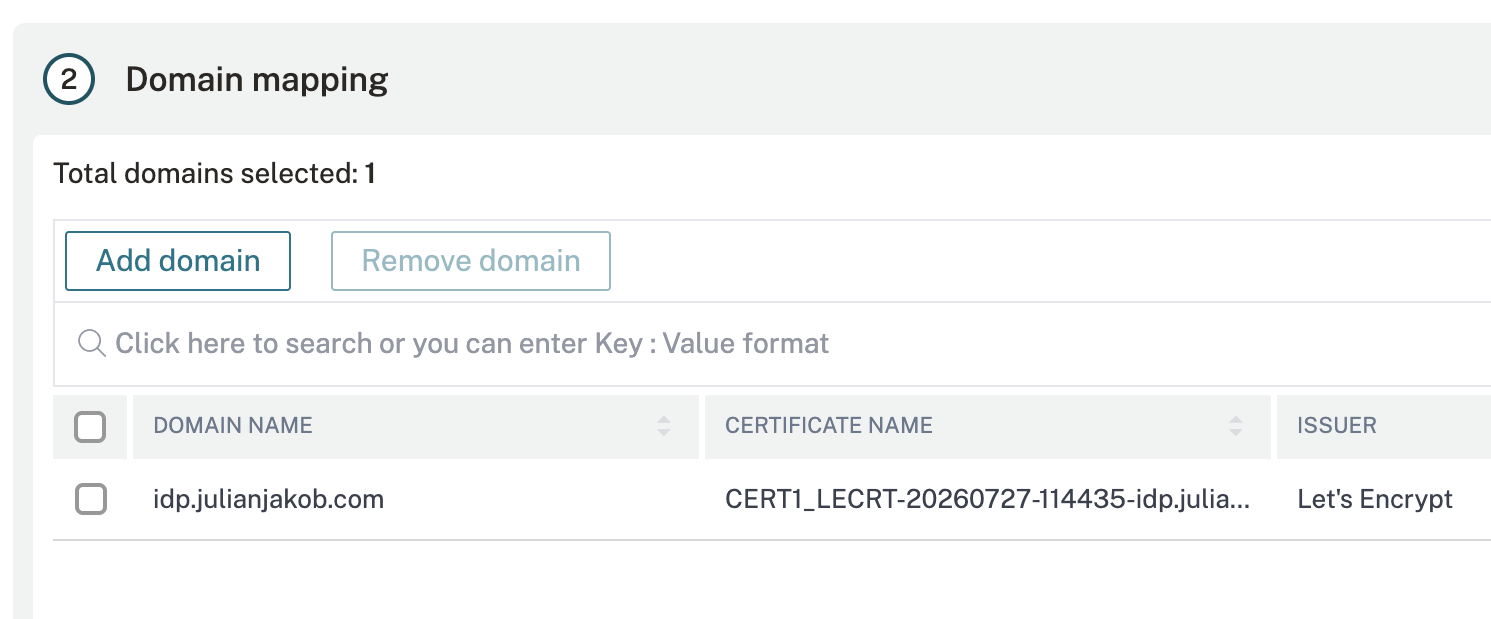
Now, the Domain mapping should automatically suggest the Domain which exists from the manual uploaded cert:
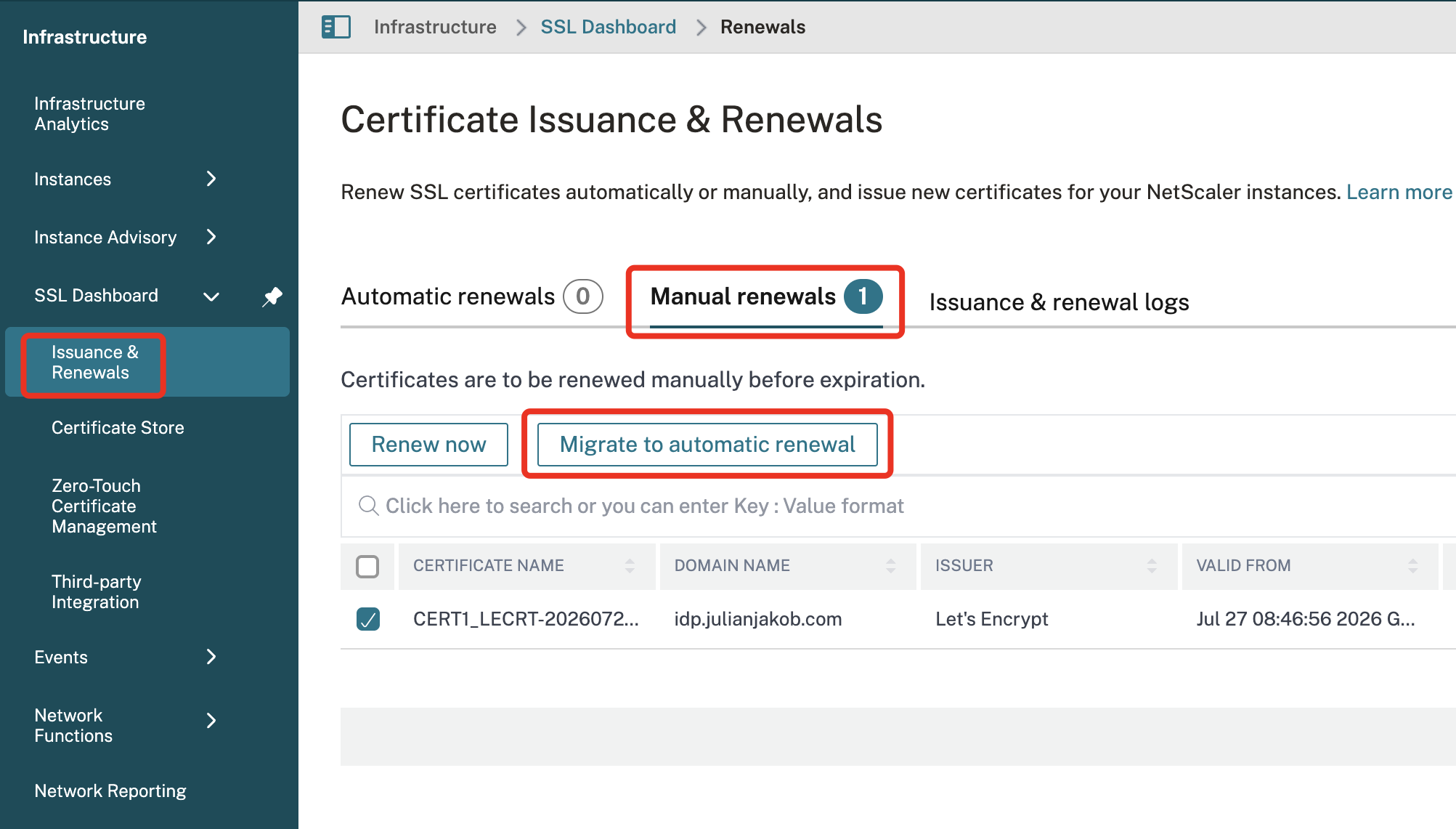
After your integration is created successfully, the next screenshot shouldn’t exist, as your “Manual renewals” Cert should now automatically be moved to Automatic renewals:
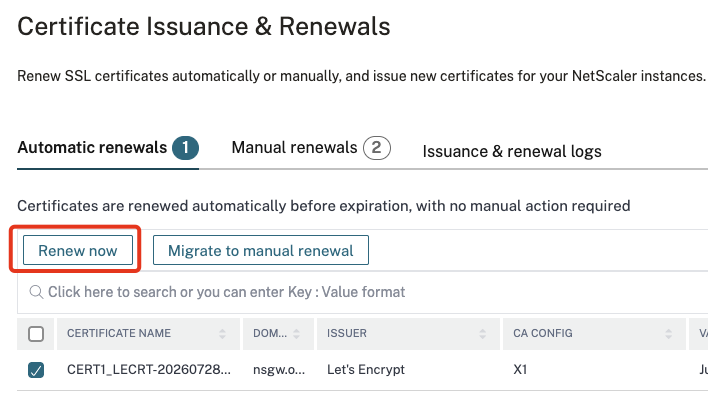
You can now test your connection and Auto-Renewal with a manual “Renew now”:
On Azure, there are temporary TXT records created by NSC for every SAN-Name you’ve provided in your Certificate, they got deleted after some seconds:

Issue Certificate
In my example, I’ve imported an existing LE Certificate, which I used for future Auto-Renewals. If you want to create a new Certificate (or you want to switch your CA’s) you can do this directly from your NSC.
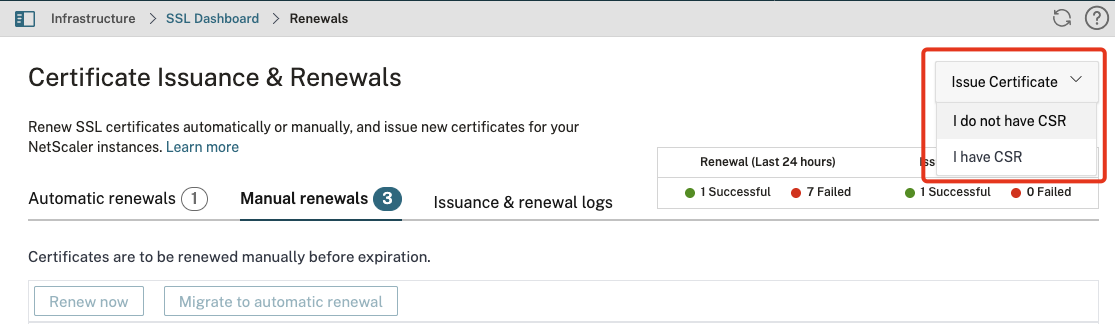
I tried to directly create a SAN Certificate without a CSR and without a Private Key, so NSC should create both during the process. It was always failing with “Failed to fetch data. Request failed with status code 400”.
I created a Private Key and CSR via OpenSSL, uploaded it to NSC and issued the Certificate via “I have CSR” – this was working fine without any issues. So this could be your first task, create one SAN “by manual” and enable Automatic renewals for any followed cert-rotation.
Troubleshooting NetScaler
Logs for ZTCM-actions are automatically written in ns.log as Syslog format, for any successful operations, warnings and errors. Here’s an example of a successful zero-touch cert-fetch where you can see my access to a CS vServer and which certificate automatically was selected and presented to my Client:
default SSLLOG SSL_HANDSHAKE_SUCCESS 14139147 0 : SPCBId 4565286 – ClientIP 127.0.0.1 – ClientPort 60552 – VserverServiceIP 10.10.10.75 – VserverServicePort 443 – ClientVersion TLSv1.3 – CipherSuite “TLS1.3-AES256-GCM-SHA384” – Session New – ZeroTouch – VserverName “cs_vsrv_ssl_443” – CertPath “CERT1_LECRT-20260727-114435-idp.julianjakob.com.pfx”
Security Concerns
It’s great to haven’t spread all different Certificates / Keys to all of your NetScaler Intances locally, anymore. There’s now a central single store on NSC / NSC-Service. What does that mean? You have to make sure to secure your NSC / NSC-Service. Use RBAC to limit access to the SSL Dashboard / Cert-Features and configure a supported MFA-Method for Logon.
Another negative impact of using SNI for presenting the matching certificate is some kind of any domain is accepted, as long as there’s a matching certificate located in ZTCS. When using Content Switching as a pre condition for any LB vServer, you’re safe when using expressions like checking Hostnames or FQDNs. Otherwise, it makes sense to think of pattern sets, restricting access to limited domains / hostnames / FQDNs, bound to your LB vServers.
Summary
That’s it, now you’ve configured the complete “Chain of Zero-Touch Certificate Management” – a central management Store (NSC) with Auto-Renewal of your Certificates.
What’s next? Hopefully we will see some more supported DNS-Providers and the ability to use internal CA’s like Microsoft’s Certificate Authority Services.