Table of Contents
Overview
No-one will have to deal with Printers or Print-Servers. Doesn’t matter if printing from a Client / Notebook or from an EUC-solution like Azure Virtual Desktop / Windows365 CloudPC.
Here’s a possible easy-to-setup print solution, driverless and also supported for AVD and Windows365 CloudPC.
The best thing? Universal Print is already included in the following licenses:
| License | Jobs per Month per User |
| Microsoft 365 E3, E5, Business Premium | 100 |
| Microsoft 365 F3 | 5 |
| Windows 10/11 Enterprise E3, E5 | 5 |
| Universal Print (Standalone) | 5 |
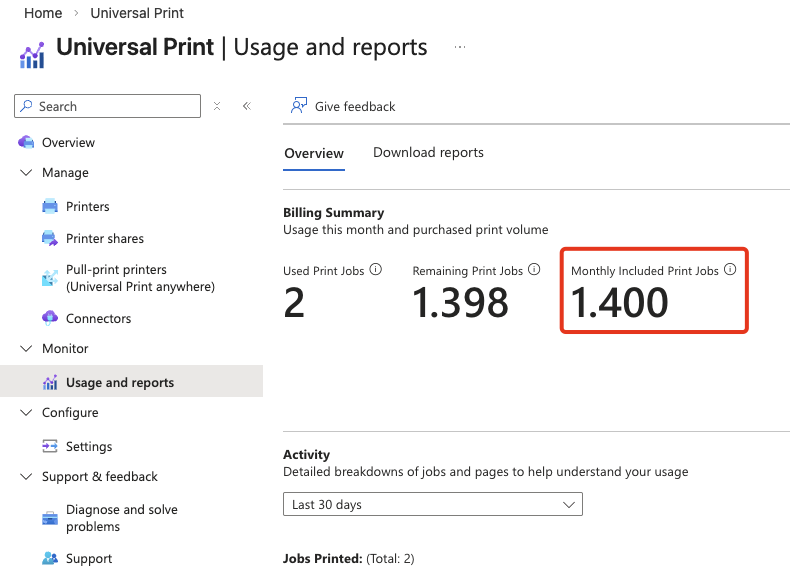
So for example, a Tenant with 14x Business Premium Licenses, you’ve got a 100 Print-Jobs (not Pages!) per User per Month. This is 1400 in total, which is shared as a tenant-wide Pool:
Configuration
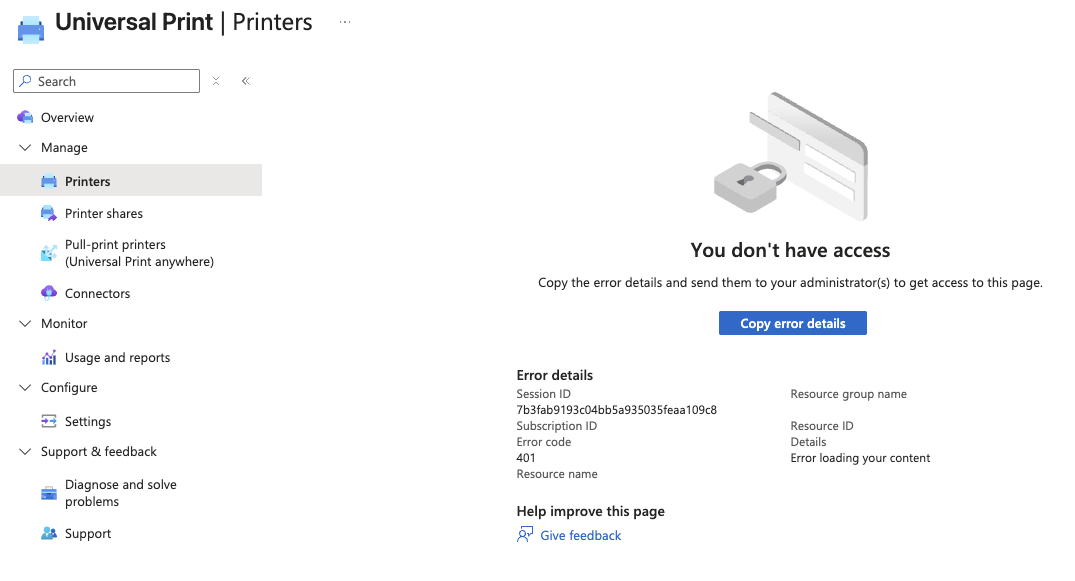
First, your admin (Global Admin or a Minimum of Printer Administrator Role) needs a Universal Print license. Without assigning a license, you’re not able to configure anything in the Universal Print Portal:
Adding Printers
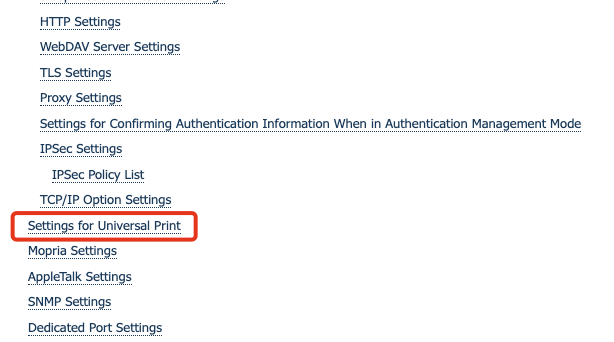
There are two technical methods to register your Printer to Universal Print. The preferred way is to directly setup your Printer to Universal Print – here’s a list of supported printers and you can check your Printer Admin-GUI if there’s anything listed as “Universal Print” in Network-Settings. So the Printer will communicate with Microsoft, directly.
Direct Connect Printer to Universal Print
Surprisingly, a customers 7 year old Canon-Printer was supporting it, also:
You will than register your Printer to Entra ID via Device-Code-Auth:
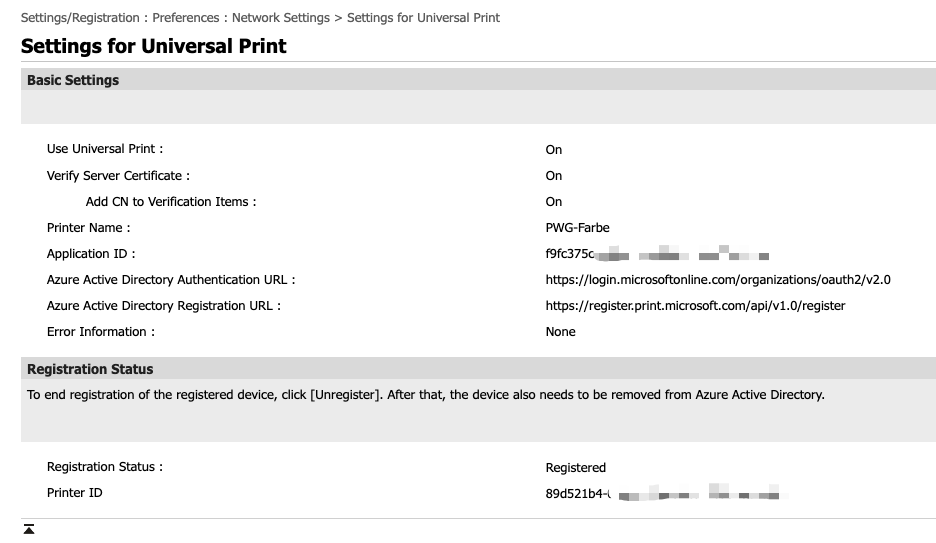
Which will result in provisioning an Enterprise App, the Application ID is a default of the Printer-Vendor:

Any other Requirements? Sure – Internet! Here’s a short Firewall-Log of a Printer, configured with Universal Print. The Printer needs a working DNS and Internet-Setup, 443 outgoing is needed to the Microsoft-World (without any SSL-Inspection):
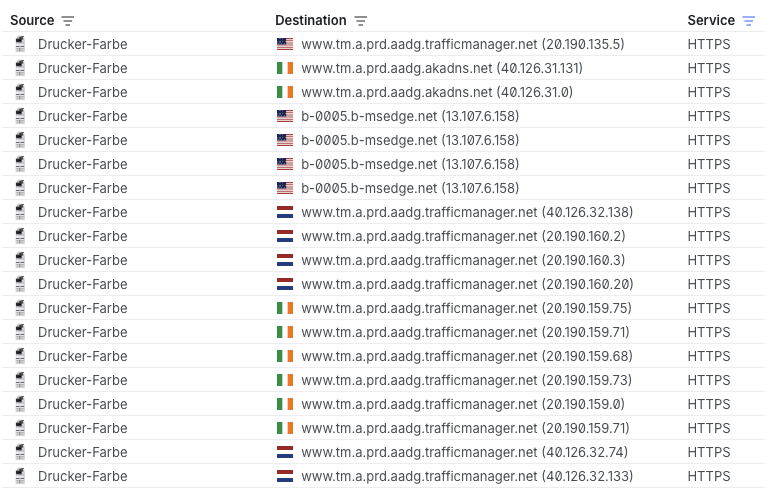
Here’s a list of required endpoints which will resolve in MS-trafficmanager URL’s listed above.
When the registration on the Printer went successful, you will see the Printer in Universal Print Portal on Azure. Anything else? Yes, you have to create a Print-Share of each Printer.
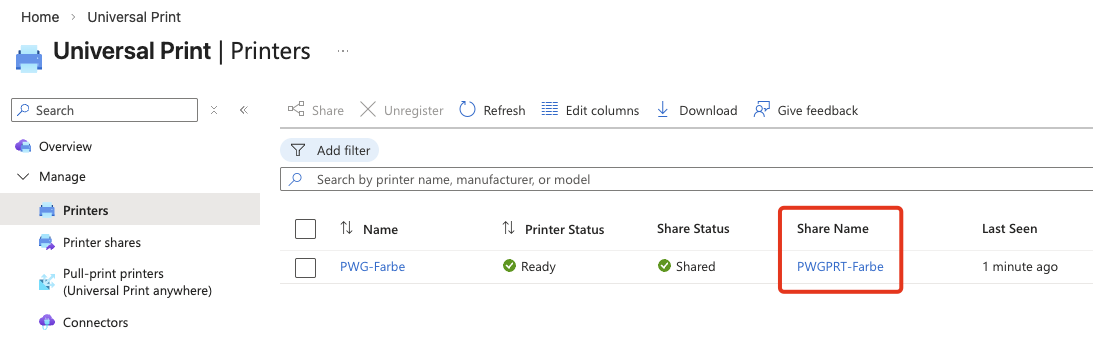
Sharing is easy, just define some Informations (Name, Location, Building, Floor, …) and Allow access to everyone in your organization or with Entra Groups.
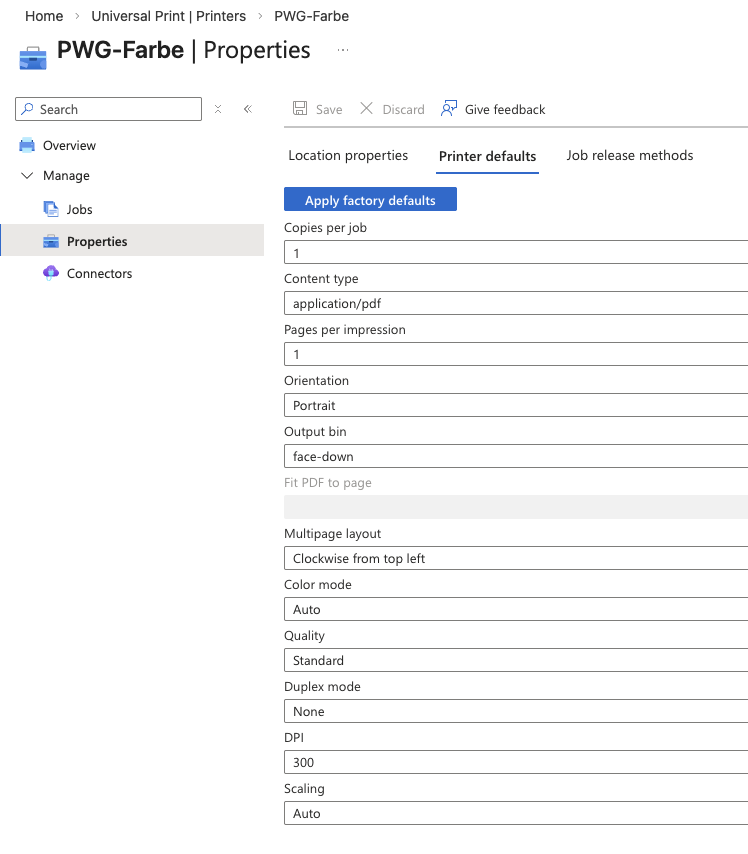
Also, you can pre-configure the Printer defaults:
Connect Printer to Universal Print via Connector
Second deployment method, for any other Network-Printers, not directly supporting Universal Print is the Universal Print Connector.
It’s princip is simple, you need a Server or a Client, running 24×7 which has a direct connection to your Printers and Internet.
Just install the Software, Sign in with your Tenant, find your local network printers automatically and Register with Universal Print:
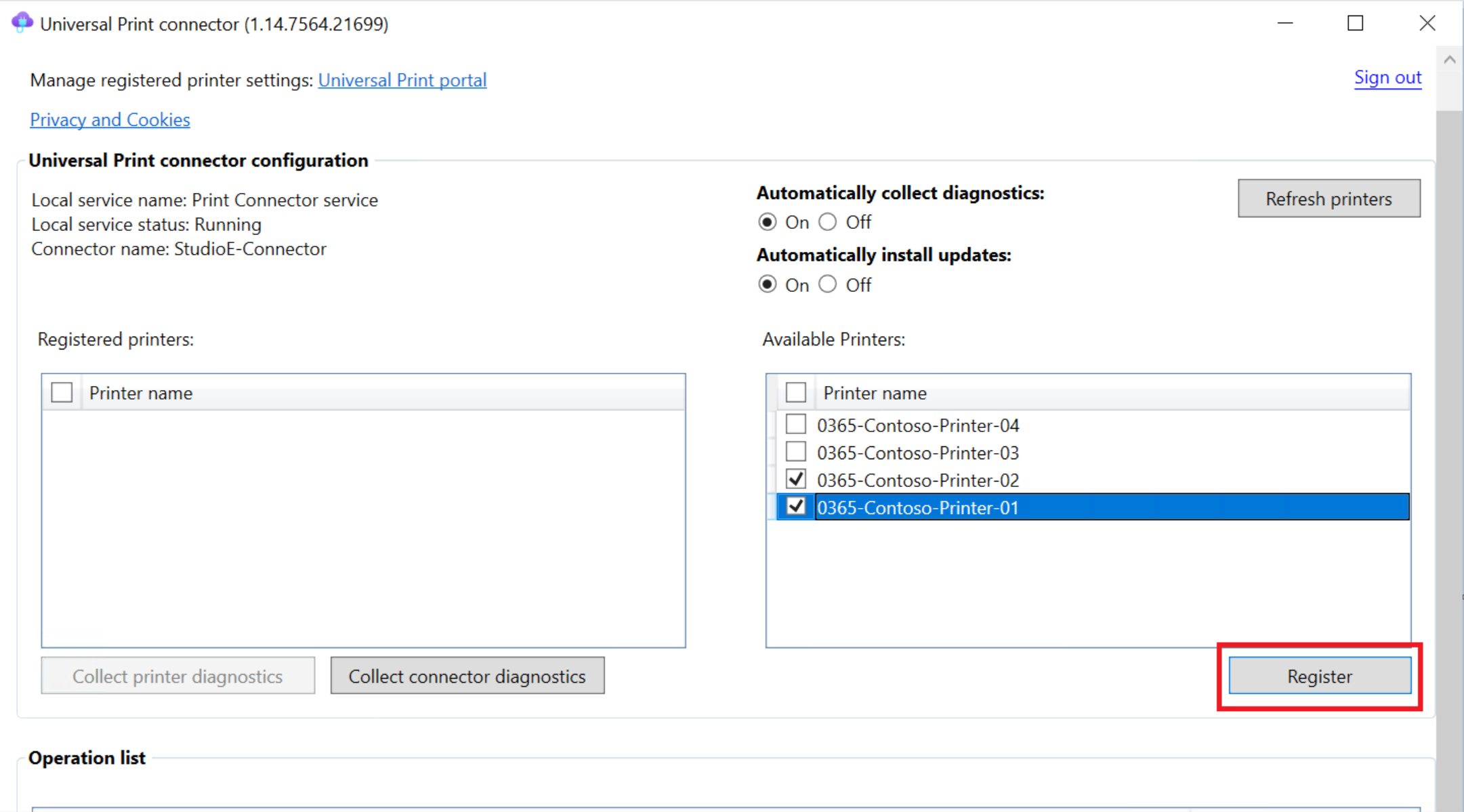
The Universal Print connector will act as a Proxy, receiving all Universal Print jobs and distribute to the suitable printer.
Deploy Universal-Printers with Intune
There’s a simple Intune policy called Printer Provisioning where you’re able to assign Installation-Jobs. The needed ID’s are shown in the Printer shares in Universal Print:
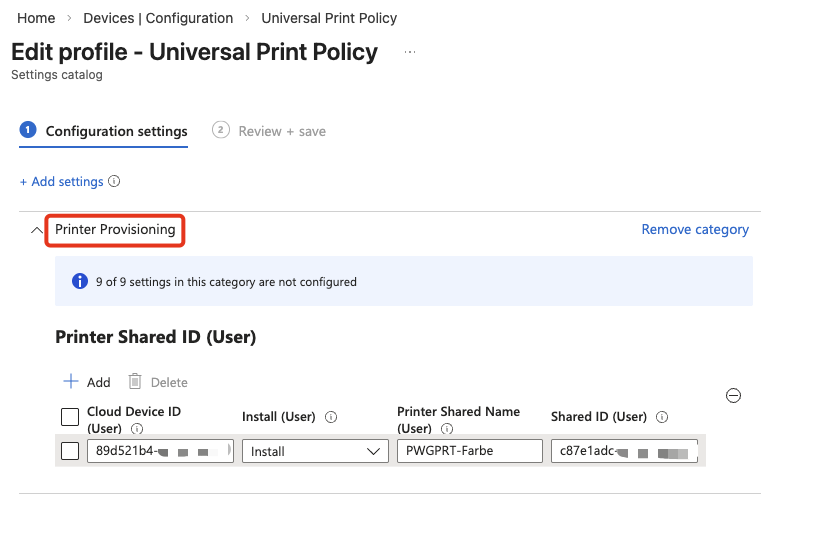
This policy works also for AVD (Single & Multi-Session) and Windows 365 CloudPC deployments. So after Logon to AVD resources, the Universal Cloud Printers are directly installed.
Cloud-Printers will appear with a little Cloud-Symbol:
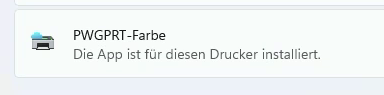
As there’s no Vendor-Driver – Universal Print Class Driver is used for every Printer – you don’t have to deal with the driver’s chaos, anymore. It’s also great from a security perspective.
Summary
An easy to use solution with a new clean driver-default, regardless of a physical Client or a Virtual Desktop. Happy Printing!